Maya Tools
Name : Cutscene creator
Use : Generates cutscene data from assets placed in Maya
User : cinematic set-up artist, camera artists, TAs
Language : python (Maya), c# (proprietary tools), QT
This was made at Vicarious Visions (currently part of Blizzard) and was used on several projects across multiple studies. It enabled cinematic teams to create a complete in-game cutscenes (beside lights) without leaving Maya. Once set up is complete, a single button press would export the cutscene which could be viewed in game or brought over to our proprietary tools.
A cutscene was made of one or more shots. Each shot was contained within a single Maya file. A Maya shot file would contain a camera, actors, animations, VFX nodes and individual VO tracks. VO tracks were timed out in the dope sheet and turned into a file stream on export. All of the shots for a cutscene would in the cutscene folder in source.
All the data generated was based on requirements of our proprietary tools and game engine. The data started out as python classes and then was converted to game data using c# templates that were accessed via a local server. I wrote the conversion steps for taking the python classes and converting them to game data as well as some of the c# templates. However, the lower level tool and engine work was done by engineers on the tools or game play team.

The UI is all context menus which allows for a clean dialog as well as an intuitive learning curve as unique widgets have their own options and users can learn by using.


These are files that were generated during the export process. The scene name is Crash2_Outro100_Cinematic. The first five files organize assets and shots for the scene and the remaining files contain data for each unique shot. EDC files were a proprietary format that very closely resembled XML and were converted to binary files on build. Once this data was generated the cutscene could be fired in the engine or brought into our proprietary tool set to add lights.

Name : FBX exporter
Use : organizes and exports model, rig and animation FBXs
User : artist/animators who export FBX from Maya
Language : python, QT
Tool features
Code for the Rig, Animation and Model exporter uses the same backend for collecting and organizing data, exporting and some UI elements. The rig and animation exporter share the a common UI module and the model exporter has its own UI module
Exported assets are added to an export layer. Layers are used for organization and you can have as many layers as needed with multiple assets in a layer as well as change export options for how to export assets within a layer.
Data is persistent to the Maya file and saved as an XML string to fileInfo which can be written to or read from disk.
Has export options, for both layers and individual assets, which can be set to export to Unreal or Unity as both were used in the studio. Export options are saved in the Maya file and not local to user so it is consistent across users
Validation steps to insure assets meet game requirements
Rig Exporter:
The rig is added to the dialog, via a context menu, based on the selection of the parent joint of the joints chain.

Once the joint chain is added you add the geometry that is skinned to the joints. You can add them as individual FBX exports or a single FBX export. The rig is the export layer for the geo that is added.

You can set the number of influences per joint. This studio did a lot of VF/AR work so we restricted the max number to 3. An error will be thrown if you try to export with too many influences.

When you add a rig to the rig exporter pertinent data is added in the joint parent's Extra Attributes. This data is consumed by the Animation exporter when the rig is added.

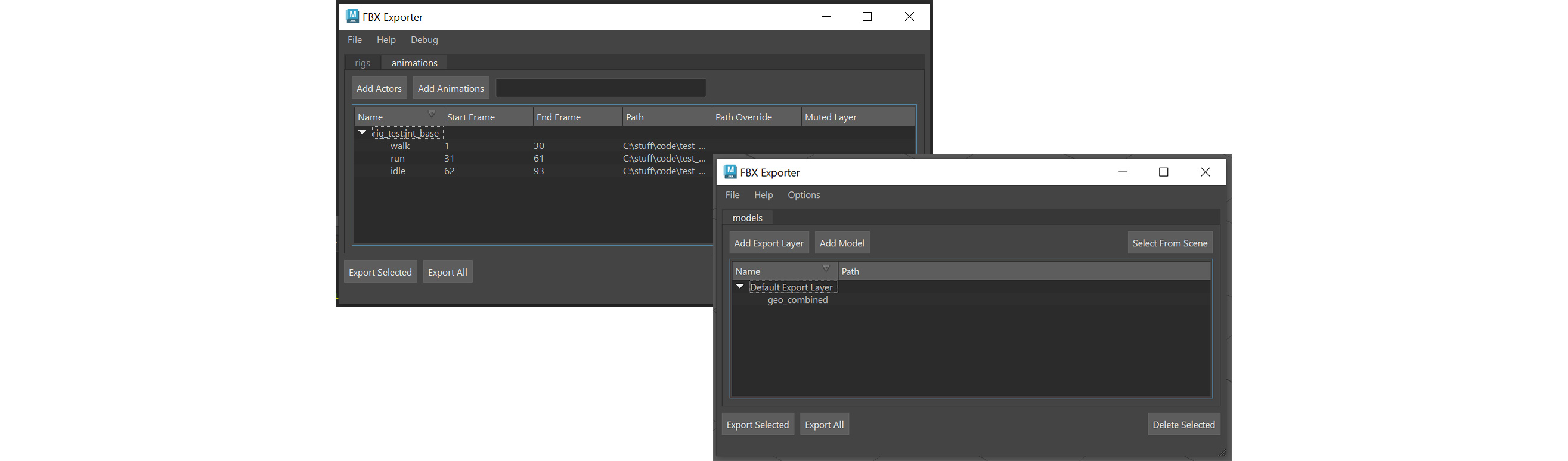
Animation Exporter:
Once the rig is referenced into the animation file you can add it to the animation exporter. The rig will be the export layer for all the animations it contains

After the Actor has been added you can add as many animations as you like. Each animation has its own data depending on animation needs.

You can add an override-path for testing the export or set the animation to recognized muted animation layers.

Model Exporter:
Start using the Model exporter by adding a new layer or using the default one. You can add as many export layers as you like. This is to help organize exporting from complex scenes.

You can add several models as one FBX export

...or add several individual FBX exports. You can add as many export layers and export types as you like to organize you scene

You can set persistent export options on either the export layer or override option for individual FBX exports. This was largely for differences between Unity and Unreal.
